Orders module
The orders to run, on the screen at the machine or workstation
The Orders module is the basis for both planning production and executing the plan. Operators see what to produce next, with the work order instructions and standard operating procedures that belong to it, start and stop the job, and report quantities and scrap where the work happens. It runs on its own, and it connects to your ERP if you want it to.
What changes
- 0
- ERP integrations required to start
- 1 screen
- For the operator: what to run, start, stop, report
- 2 ways
- Order sync with your ERP, if and when you want it
A finance ERP is a poor fit for a machine or workstation
Plenty of factories have never wanted their finance ERP on the shopfloor, and they are right not to: it is built for month-end, not for an operator with gloves on at 05:40. So the orders live on paper, on a whiteboard, or in a spreadsheet the planner keeps. The Orders module gives the floor its own screen for that job. Where an ERP already holds the orders, we sync with it in both directions. Where it does not, or where you would rather keep it out of production, the module holds the orders itself.
Orders on the floor, ERP optional
Start and stop at the machine or workstation
One screen at the machine or workstation: what to run next, start the job, stop it, and register why it stopped. Nothing to learn beyond the buttons an operator actually needs.
The order list for this station
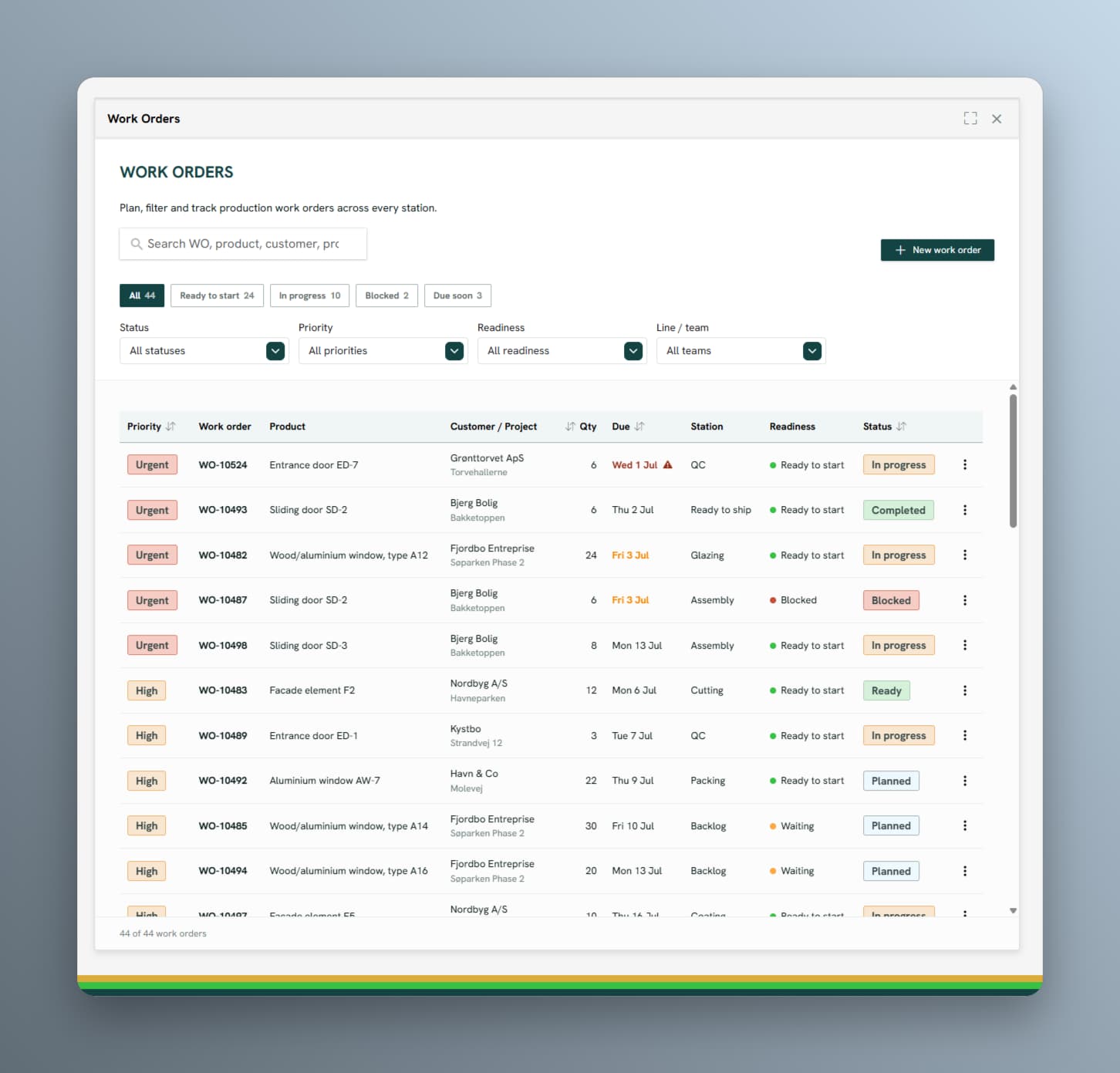
Filtered to the machine or workstation in front of you, in priority order, with quantity, product, and due date. What is ready to start, what is waiting, what is blocked.
Report quantities and scrap
Good parts, scrap, and reason codes registered as the job runs, so the completion figure is the one the machine or workstation produced rather than an estimate typed in later.
Work order instructions and SOPs
Each order carries its work order instructions and standard operating procedures to the machine or workstation, so the operator executes the plan the same way every time, in the version that applies.
Traceability on every order
Every order records which machine or workstation ran it, which operator, which shift, and which batch, so you can trace a finished product back through production when a customer or an auditor asks.
Runs with or without an ERP
No ERP connection required. Create and manage orders in the module itself, and keep your finance system out of production entirely if that suits you better.
Two-way ERP sync, when you want it
If the orders already live in an ERP, they flow down to the floor and actual quantities, scrap, and completion times flow back automatically. Optional, and added when it earns its keep.
Every order carries its own numbers
Because the same registration feeds OEE, each order ends up with real run time, real stops, and real output behind it, without anyone filling in a form for it.
Go deeper
How it works
- 01
Start on the floor
The panel goes up at the machine or workstation with the order list on it. Operators start, stop, and report from day one, with no integration project in front of it.
- 02
Decide about the ERP
Keep creating orders in the module, or connect the ERP so orders flow down and actuals flow back. Either way the floor screen stays the same.
- 03
Let the numbers accumulate
Every started and stopped job leaves real run times and real output behind, which is what planning, OEE, and the monthly report then read from.
Product view
The order list the floor actually works from
Priority, product, quantity, due date, station, and readiness in one list, whether the orders came from an ERP or were created here.