
Insights
OptiPeople MCP server: ask your production data questions in Claude
by OptiPeople Team
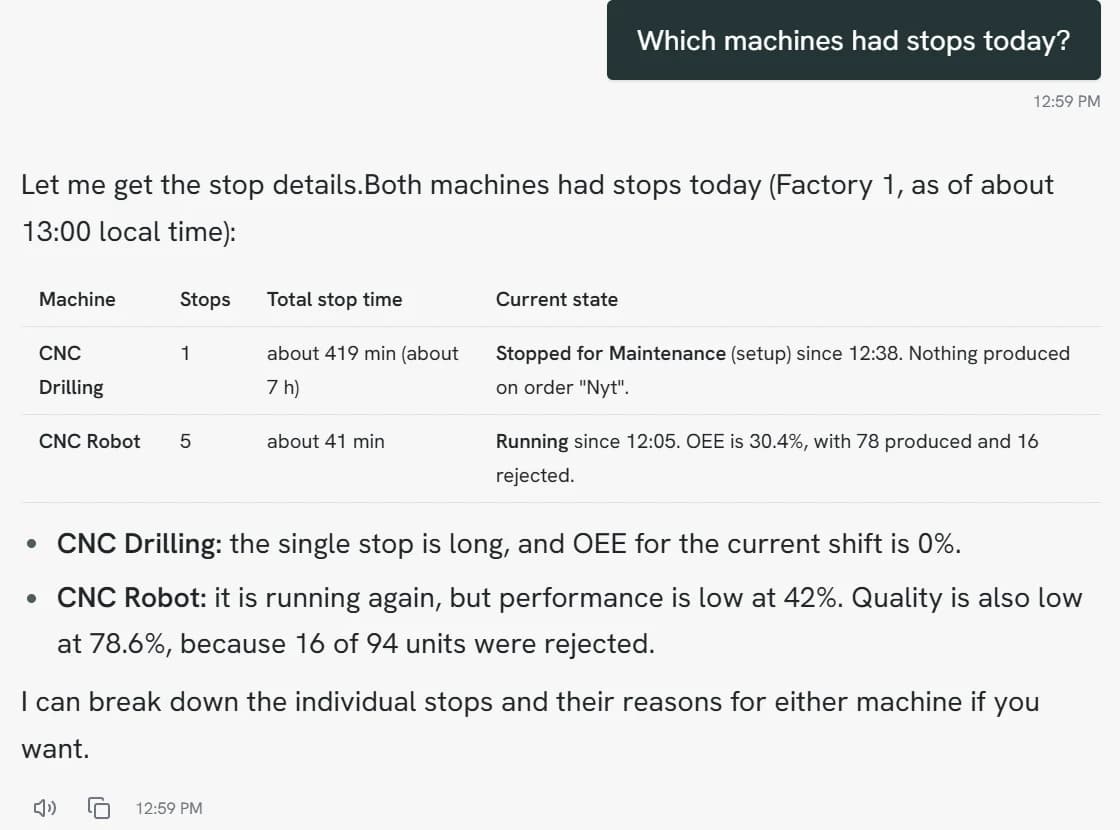
The OptiPeople Data Platform has an MCP server. It lets an AI assistant such as Claude read your machine data directly and answer questions like "what was OEE on the packing line last week?" or "which stop reasons cost us the most time in September?".
No code, no export, no Power BI model. You connect once, log in with your portal user, and ask.
This post explains what MCP is, how to connect, and everything the server can do. If you would rather build your own integration, read the step-by-step guide to the OptiPeople Data Platform API.
What is MCP?
MCP (Model Context Protocol) is an open standard that lets AI assistants use tools in other systems. Instead of you copying numbers into a chat, the assistant calls the platform itself, gets the data and works with it.
The OptiPeople MCP server gives the assistant a set of tools built for production data: machines, shifts, live status, OEE reports, stops, orders, counters and telemetry. The assistant picks the right tool for your question.
API or MCP?
| External API | MCP server | |
|---|---|---|
| Who uses it | Developers and BI tools | Anyone who can write a question |
| How | REST calls with an access code | An AI assistant calls tools for you |
| Login | Account access code | OAuth with your own portal user |
| Best for | Power BI, ERP integrations, fixed reports | Ad hoc questions, analysis, quick answers |
They work on the same data. Many teams use both: the API feeds the fixed reports, MCP answers the questions that come up in between.
How to connect
The server address is:
https://mcp.optipeople.dk/
Claude (claude.ai and the desktop app)
- Go to Settings > Connectors.
- Choose Add custom connector.
- Give it a name, for example OptiPeople, and paste
https://mcp.optipeople.dk/as the URL. - Click Connect. You are sent to the OptiPeople login.
- Log in with your portal user and approve access.
That's it. Start a new chat and ask about your machines. On Team and Enterprise plans an owner may need to add the connector for the organisation first.
Claude Code
claude mcp add --transport http optipeople https://mcp.optipeople.dk/
Then run /mcp inside Claude Code and log in.
Other AI assistants
Any client that supports remote MCP servers over HTTP with OAuth can connect with the same URL. The server supports dynamic client registration, so the client registers itself. You don't need to create a client id or secret by hand.
How the login works
- You log in with OAuth and PKCE. Your password never passes through the AI assistant.
- The assistant gets a token with the scope
mcp:toolsand sees the same account data your portal user can see. - Each connected client shows up in the portal under Account > MCP > Client Secrets. Remove it there to cut access.
- Changes made through MCP are logged with the source
McpTool, so you can always tell them apart from data sent by the machines.
What the server can do
The server has 13 tools. You never call them yourself, the assistant does. But knowing what is there helps you ask good questions.
Find your way around
- get_system_context: describes the platform, key concepts (shifts, OEE, part counters, telemetry, dynamic shifts) and your account: name, enabled features, number of factories and machines. The assistant usually calls this first.
- get_factories: your factories with country, time zone and local time, plus the shift names configured there.
- get_machines: all machines with id, factory, part counters and whether they send telemetry. Filter by factory or part of the name.
- get_machine: one machine's set-up: part counters and units, telemetry parameters, targets for OEE, uptime, performance and quality, and expected speed.
- get_shift_schedule: the weekly shift plan for up to 20 machines, including which shifts start or stop with the machine.
What is happening right now
- get_machine_status: the live state of up to 10 machines, as the real-time dashboard shows it. Running, stopped, setup or outside shift. Stop reason and since when. Whether stops are waiting for a reason. The current shift, its OEE so far, the running order with produced and rejected units, and the last heartbeat.
OEE over a period
- get_oee_report: the portal's OEE report for up to 5 machines, for an ISO week or a range of days. Per machine: OEE, availability, performance and quality; shift, run, planned and unplanned stop hours; number of stops; produced and rejected units per counter; and the top 5 stop reasons. You can limit it to certain shifts.
Ask anything about production data
- describe_sources: tells the assistant which data sources exist, their fields, and the limits.
- query_data: one flexible query tool. Filter, group by machine, factory, counter, reason or order, bucket by hour, shift, day, week or month, and calculate sums, averages, minimums, maximums and percentiles.
query_data reads six sources:
| Source | What it holds |
|---|---|
partCounters | Produced, rejected and net units and reject rate. Average, best and worst per hour, shift, day, week or month. |
stops | Every stop with reason, category, planned or unplanned, setup or stop, duration and whether it is still open. |
orders | Each order run: when, how long, running time, planned and unplanned stops, produced and rejected units. |
telemetry | Sensor readings such as temperature, speed or power. Average, min, max, p50 and p95, optionally only while the machine was running. |
heartbeats | When each machine's device was reporting in, and the gaps when it wasn't. |
lists | Your master data lists, such as quality control results or operator scans. |
Write data back
Three tools change data. The assistant only uses them when you ask it to.
- send_machine_state: registers that a machine started, stopped, or stopped with a given reason.
- send_order: starts an order on a machine, with optional quantity, expected speed and custom fields. The order is created if it doesn't exist.
- send_part_counter: registers produced units (positive number) or rejected units (negative number) on a part counter.
All three accept a timestamp, so you can register something that happened earlier today. They count towards OEE just like data from the machine.
For partners and administrators
- list_accounts: partners see their linked customer accounts and super administrators see all of them. Every tool takes an account id, so a partner can work across customers in one chat. Ordinary users only ever see their own account.
Questions to try
- "Which machines are stopped right now, and why?"
- "Give me the OEE report for week 42 for all machines."
- "What were the top 10 stop reasons on CNC Robot in September, in minutes?"
- "How many units did the packing line produce per shift last week, and what was the reject rate?"
- "Which orders took longest compared to how many units they made?"
- "What was the average oven temperature while it was running, hour by hour yesterday?"
- "Did any machine lose connection this month?"
- "Start order 4711 on the packing line with 2,000 units."
Good to know
- Times: the assistant answers in each factory's local time.
- Limits: queries cover up to 92 days in one go (a year for stops and shift-based totals), raw rows a shorter window. Ask for weeks or months if you need a long period.
- Fresh numbers: a period that is still running is marked as not final. A correction to a closed period can take up to 24 hours to show.
- OEE comes from one place: OEE is always taken from the OEE report, so the numbers match what you see in the portal.
Get started
Connect https://mcp.optipeople.dk/ in your AI assistant, log in, and ask your first question. Need a developer integration instead? The API guide covers all 54 REST endpoints.